%20Logos%202022/sharetru%20logo%20white%20bg%20and%20padding.png.png?width=400&height=100&name=sharetru%20logo%20white%20bg%20and%20padding.png.png)
The Sharetru Ticketing Platform at support.sharetru.com is where you submit requests to any Sharetru team, track their progress, and find self-help articles. This guide walks you through logging in, getting around, and finding what you need.
1. LOGGING IN FOR THE FIRST TIME
Site administrators and main billing contacts are set up in advance. You don’t need to register.
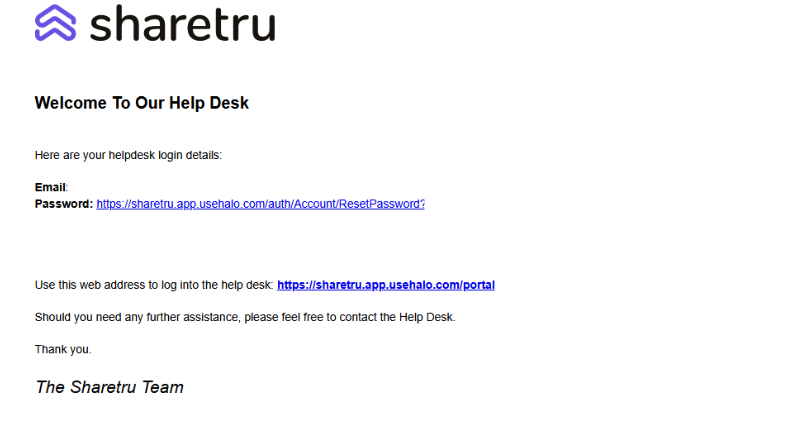
1. Find the Welcome Email from success@sharetru.com with the subject Welcome to the New Sharetru Ticketing Platform | Login Details.
2. Click the link in the email to set your password. The link is valid for 3 days.
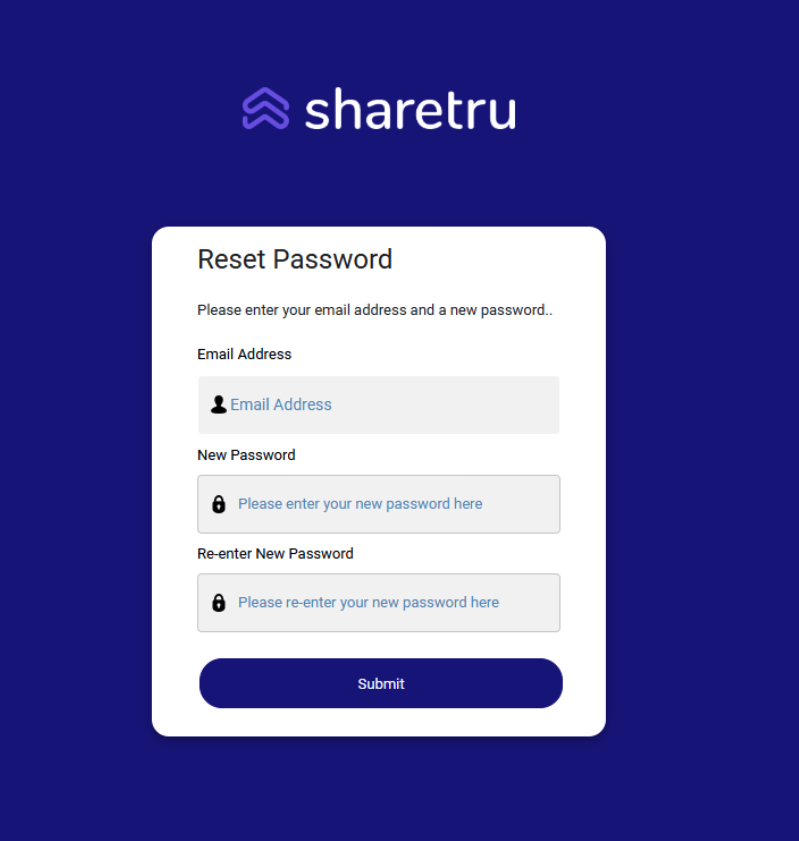
4. Go to support.sharetru.com. Enter your email address as your username, enter your new password, and click Submit.
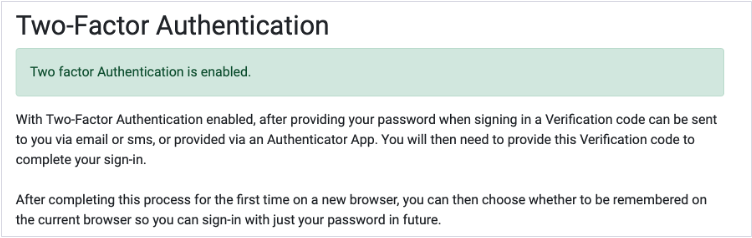
5. Set up multi-factor authentication (MFA). When prompted, click Configure 2FA.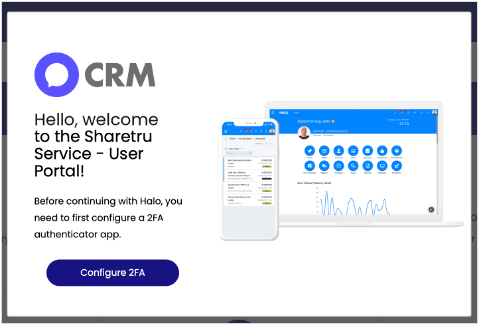
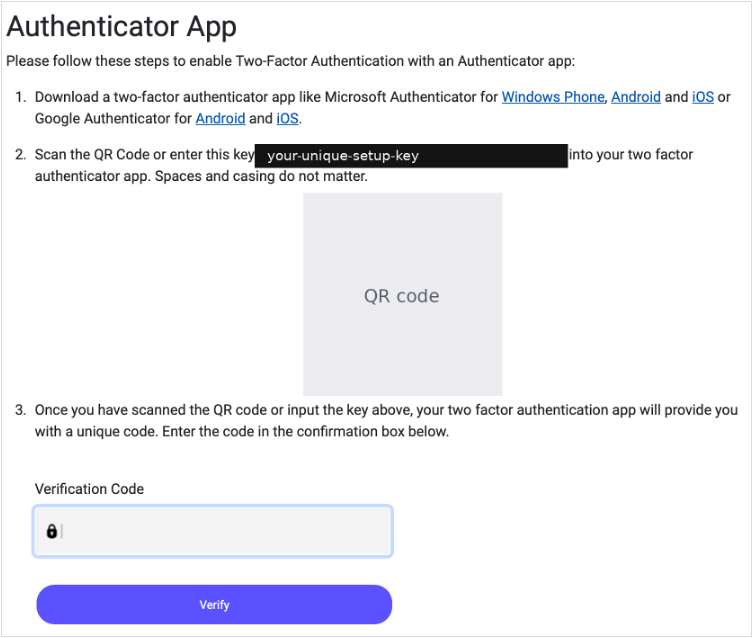
6. Open any authenticator app (such as Microsoft Authenticator or Google Authenticator) and scan the QR code on the screen, or type in the setup key shown. Enter the verification code from the app and click Verify.
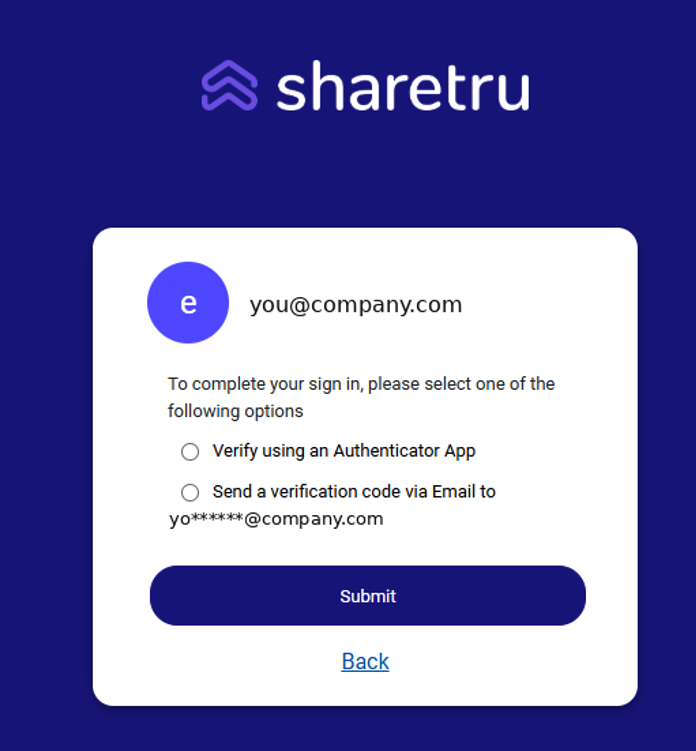
Signing in after setup: after entering your password, choose Verify using an Authenticator App or Send a verification code via Email, then click Submit. After your first sign-in on a browser, you can choose to be remembered on that browser so you only need your password next time.
No Welcome Email within 24 hours? Check your spam or junk folder, then use Forgot Password (section 2). If it’s urgent, email support@sharetru.com and a ticket will be created for you.
2. RESETTING A FORGOTTEN PASSWORD
- Go to support.sharetru.com and click Forgot Password on the login page.
- Enter your email address and submit.
- Open the reset email (check spam or junk if you don’t see it within a few minutes) and click the link.
- Set a new password and log in.
Still can’t get in? Email support@sharetru.com and we’ll help.
Lost access to your authenticator app? At sign-in, choose Send a verification code via Email to get in. Then email support@sharetru.com and we’ll reset your authenticator so you can set it up on your new device.
3. THE TICKETING PLATFORM AT A GLANCE
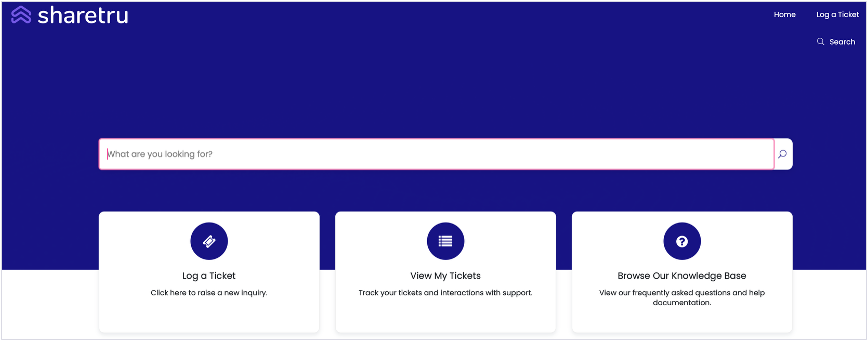
After you log in, your Ticketing Platform home page shows the buttons that fit your access level:
|
Log a Ticket |
Standard contacts. Submit a General Inquiry. We’ll route it to the right team based on what you describe. See section 4. |
|
Product Support & Customer Success |
Site Admins. Submit product support requests and anything Customer Success needs to address. See section 4. |
|
Billing Inquiry |
Billing contacts. Submit renewal, invoice, upgrade, and payment requests to our billing team. See section 4. |
|
View My Tickets |
Everyone. View, track, and reply to the tickets you’ve submitted, open and closed, including tickets migrated from our previous system. See section 5. |
|
Browse Our Knowledge Base |
Everyone. Search or browse how-to articles and guides. See section 7. |
|
Contact Information Update Request |
Everyone. Update your contact information. See section 8. |
4. SUBMITTING A NEW TICKET
The button you use to submit a ticket depends on your access level:
|
Access level |
What it means for you |
|
Standard |
Use Log a Ticket to submit questions and requests. Every ticket is logged as a General Inquiry, and we route it to the right team based on what you describe. Typical requests: how-to questions, documentation, and help articles. |
|
Site Admin |
Full admin access to your Sharetru site. Use Product Support & Customer Success for troubleshooting, how-to questions, configuration changes, and anything Customer Success needs to address. |
|
Billing |
Manages renewals, invoices, upgrades, and payments. Use Billing Inquiry to reach our billing team. Only billing contacts see this button. Contacts with both Site Admin and Billing access see both buttons. |
To submit a ticket:
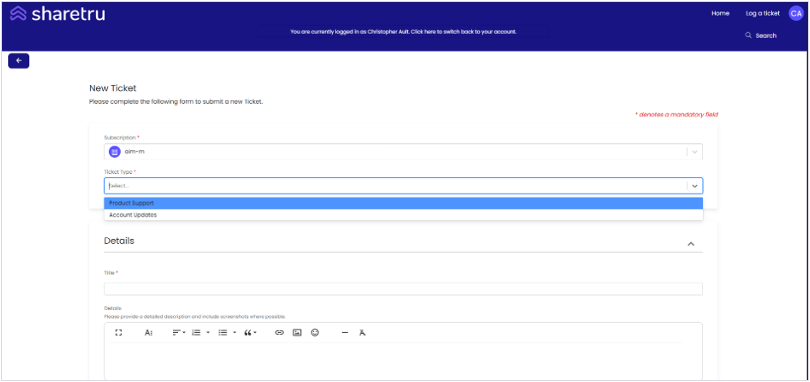
- On the home page, click the button for your request: Log a Ticket, Product Support & Customer Success, or Billing Inquiry.
- If the form asks for a Ticket Type, choose the one that fits your request.
- Add a short, descriptive subject. This makes the ticket easier to find later.
- In Details, describe the issue or request. Include screenshots where possible.
- Choose the Category that best fits your request.
- If something is down or not working for your users, check the “Is this an outage?” box so your ticket is flagged as an emergency and routed for immediate attention.
- Click Submit. You’ll receive a confirmation email with your ticket number.
Emergencies and outages: submit a ticket and check the “Is this an outage?” box. This alerts our support team to get someone on your ticket. You can also call 1-702-850-2910 and press option 4. Tickets submitted outside business hours without the outage box or a call are answered the next business day.
Prefer email? You can open a ticket by emailing any of these addresses. Anyone at your organization can do this, even without Ticketing Platform access. We match the sender’s email domain to your company, so the ticket is linked to your account automatically.
|
Technical Support |
Site issues, file transfer problems, user access, connectivity: support@sharetru.com |
|
Billing |
Invoices, payments, renewals, upgrades: billing@sharetru.com |
|
Compliance |
Security questionnaires, audit and documentation requests: compliance@sharetru.com |
|
Customer Success |
Onboarding, training, account changes: success@sharetru.com |
Tips for a faster resolution: include your Sharetru site name, who is affected, what you expected to happen, any error messages, and when the issue started. Please don’t include passwords or regulated data (such as CUI or PHI) in tickets. Use your Sharetru site to share sensitive files securely.
5. TRACKING AND REPLYING TO YOUR TICKETS
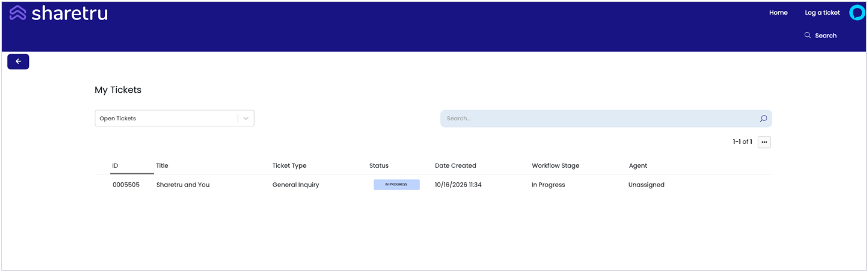
Click View My Tickets to see everything you’ve submitted. Use the Open Tickets, Closed Tickets, Awaiting Input, or All Tickets filters, or the search bar, to find a specific ticket. Awaiting Input shows tickets with the Updated status, where we’re waiting on you. Click any ticket to see the full conversation.
Whose tickets you’ll see: to start, you’ll have access to the tickets you’ve submitted, plus any you submit going forward. Extended permissions are available if you need to see more, such as tickets from others at your organization. Email support@sharetru.com to ask about them.
To reply or add information, open the ticket and add your update or attachment, or simply reply to any email about an open ticket. Both land on the same ticket. For a closed ticket, submit a new ticket and mention the old ticket number.
What the statuses mean:
|
New |
We’ve received your ticket and it’s being routed to the right team. |
|
In Progress |
A team member is working on it. |
|
Updated |
We need information or a response from you. You’ll get reminder emails, and if we don’t hear back within 7 days, the ticket closes automatically. |
|
Closed |
The ticket is complete, or it closed after 7 days with no response. Need more help on the same topic? Submit a new ticket and mention the old number. |
6. FINDING TICKETS FROM BEFORE THE SWITCH
- Every ticket from our previous system, open or closed, is migrated into View My Tickets on October 28. Closed tickets stay closed and open tickets stay open. Most tickets will be in place by the end of the day, though a small number may take a little longer to appear.
- Migrated tickets have new ticket numbers in a simpler number format. Your old ticket number is listed within each migrated ticket, and the subject and content are unchanged, so you can search by subject or keyword to find them.
- Check the Closed Tickets filter for older, resolved tickets.
7. USING THE KNOWLEDGE BASE
Click Browse Our Knowledge Base to search by keyword or browse by category. Articles cover common how-to questions about your Sharetru site, user management, and the Ticketing Platform. Can’t find what you need? Submit a ticket and we’ll point you in the right direction.
8. UPDATING YOUR CONTACT INFORMATION
Click Contact Information Update Request on the Ticketing Platform home page to update your name, phone number, and job title, or add a secondary email address. Your primary email address (your username) and your company address can’t be changed there. To update either, email support@sharetru.com.
9. GETTING HELP
- Trouble logging in or using the Ticketing Platform: support@sharetru.com
- Emergencies and outages: submit a ticket and check the “Is this an outage?” box, or call 1-702-850-2910 and press option 4.
- Adding or removing Ticketing Platform users: support@sharetru.com
- Questions about your account: success@sharetru.com, or book time with Kim Delgado, Director of Customer Success