%20Logos%202022/sharetru%20logo%20white%20bg%20and%20padding.png.png?width=400&height=100&name=sharetru%20logo%20white%20bg%20and%20padding.png.png)
Before You Start
Audience: All users
Purpose: The File Viewer allows you to preview and review files directly in your browser without downloading them. When enabled by your administrator, you can view documents, images, PDFs, and other file types in a full-screen modal viewer with page navigation controls. Depending on your plan, viewed files may include watermarking with your email address for security and tracking purposes.
Prerequisites:
-
Availability depends on your subscription plan.
|
Plan |
View in Web App |
View‑Only Links |
Watermarking |
|---|---|---|---|
|
Core |
Yes |
No |
No |
|
Complete |
Yes |
Yes |
No |
|
Complete – Single Tenant |
Yes |
Yes |
No |
|
Core – Federal |
Yes |
Yes |
Yes |
|
Complete – Federal |
Yes |
Yes |
Yes |
|
Complete – Federal – Single Tenant |
Yes |
Yes |
Yes |
-
You must have View permission for the file you want to preview (set by your administrator)
-
Contact your administrator or create a support ticket to enable file viewing features
-
File viewing must be enabled in Settings > Application > File Viewer by an administrator
Step-by-Step Instructions
Step 1: Locate the File You Want to View
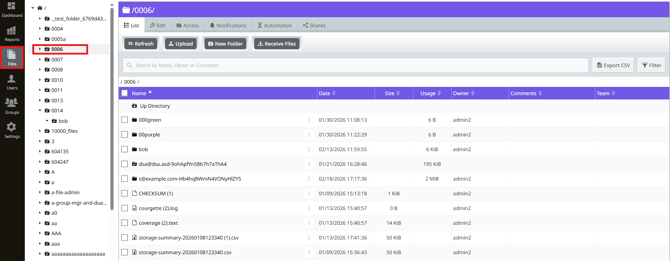
Navigate to the folder containing the file you want to preview. When file viewing is enabled, you'll see viewing options available for supported file types.
Step 2: Open the File Viewer
You have three ways to open a file in the viewer:
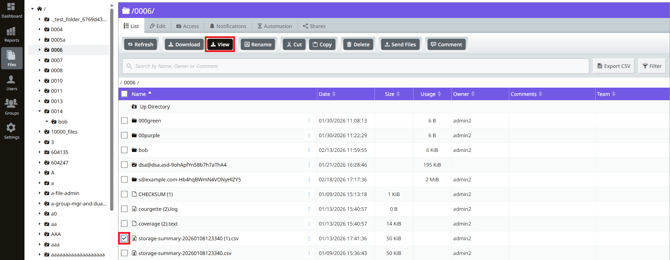
Option A: Click the checkbox next to the file and the View button displays
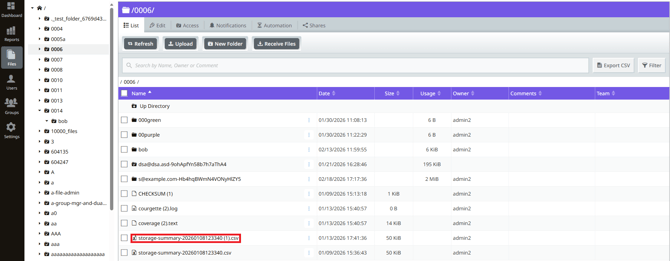
Option B: Click directly on the filename
Option C: Click the action menu (three dots) and select "View"
Step 3: Review the File in the Viewer
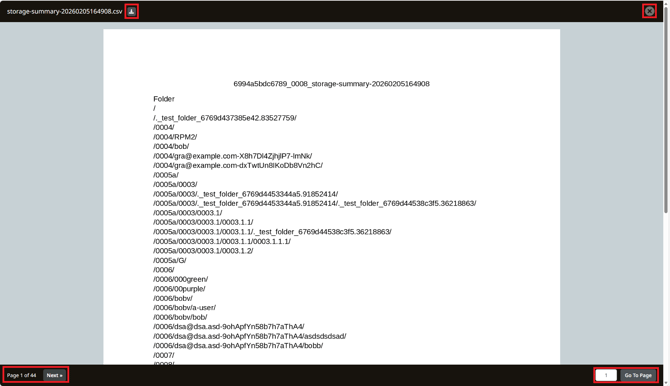
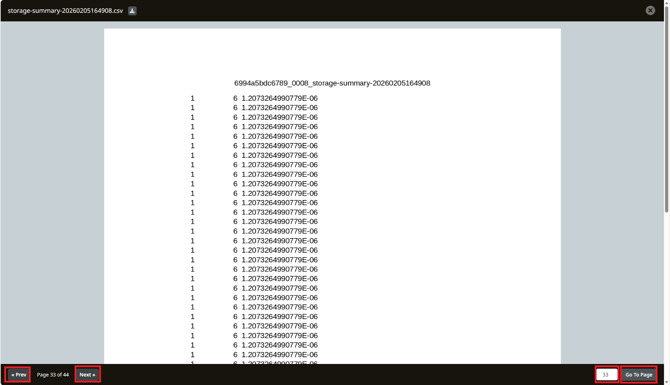
The file opens in a full-screen modal viewer. For multi-page documents, you'll see the current page displayed with navigation controls at the bottom, download and close buttons at the top.
Step 4: Navigate Through Multi-Page Documents (If Applicable)
For documents with multiple pages, use the navigation controls:
Click the left arrow to go to the previous page
Click the right arrow to go to the next page
Click the page number to open the page picker and jump to a specific page
Step 5: Download the File (Optional)
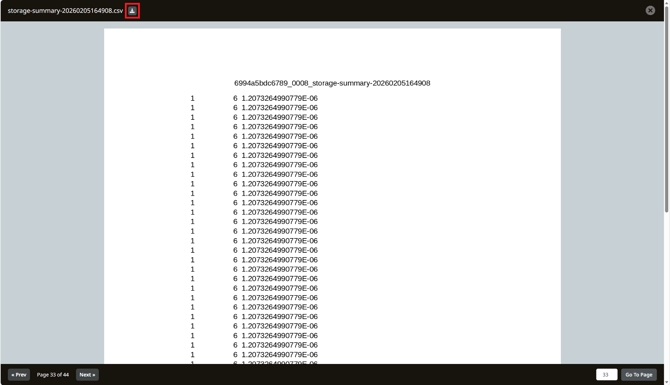
If you need to save a copy of the file, click the Download button in the viewer controls.
(This option is only available if the administrator has granted you Download access.)
Step 6: Close the Viewer
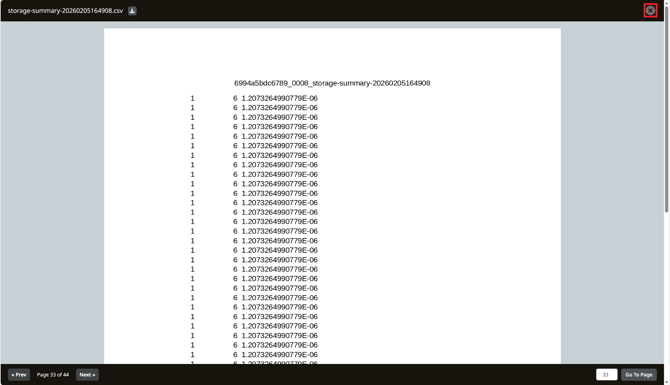
When you're finished viewing the file, click the X button in the top corner to close the viewer and return to the file list.
Optional Settings / Variations
Watermarked Files
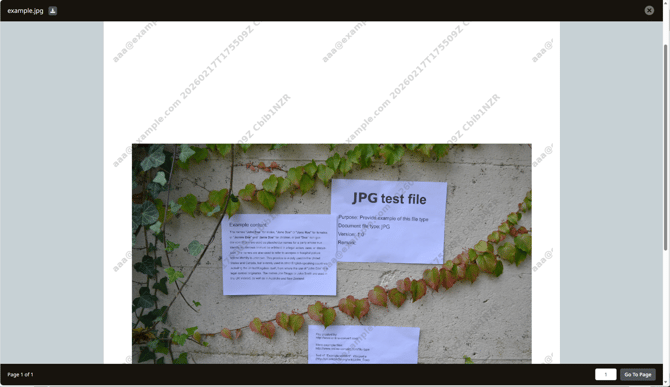
If your organization has watermarking enabled (Fedramp and Single Tenant plans only), viewed files will display your email address as a watermark on each page. This security feature helps track document distribution and prevent unauthorized sharing.
Supported File Types
The File Viewer supports the following formats:
Microsoft Office Documents:
-
Word: .doc, .docx
-
Excel: .xls, .xlsx
-
PowerPoint: .ppt, .pptx
OpenDocument Formats:
-
Writer: .odt
-
Calc: .ods
-
Impress: .odp
Other Formats:
-
PDF: .pdf
-
Images: .png, .jpg, .jpeg, .tiff
-
Text: .rtf, .txt, .csv
-
Web: .html
-
Data: .json
What Happens Next
After opening a file in the viewer:
-
The file is converted to a viewable format (if necessary) and displayed in your browser
-
Your viewing activity is logged for audit purposes
-
If watermarking is enabled, your email address appears on each page of the document
-
You can navigate through pages, download the file, or close the viewer at any time
-
The original file remains unchanged in its location
Troubleshooting
Problem: "File not found" error appears
Solution: The file has been deleted since it was shown in the list and is no longer available. Refresh the page to see the current file list.
Problem: "Permission denied" error appears
Solution: Please contact the site admin for permission. You need View permission to preview this file.
Problem: "Unable to view file" error appears
Solution: The viewer cannot show the file due to an unsupported file type or inability to read the file as saved. Please contact support for more information.
Problem: File loads slowly
Solution: Large files or multi-page documents may take longer to process and display. Wait for the viewer to complete loading. If the issue persists, try downloading the file instead.
Problem: Blank or missing pages appear
Solution: This may indicate a corrupted file or conversion issue. Try refreshing the viewer. If the problem continues, contact support for assistance.